
Whiteboard
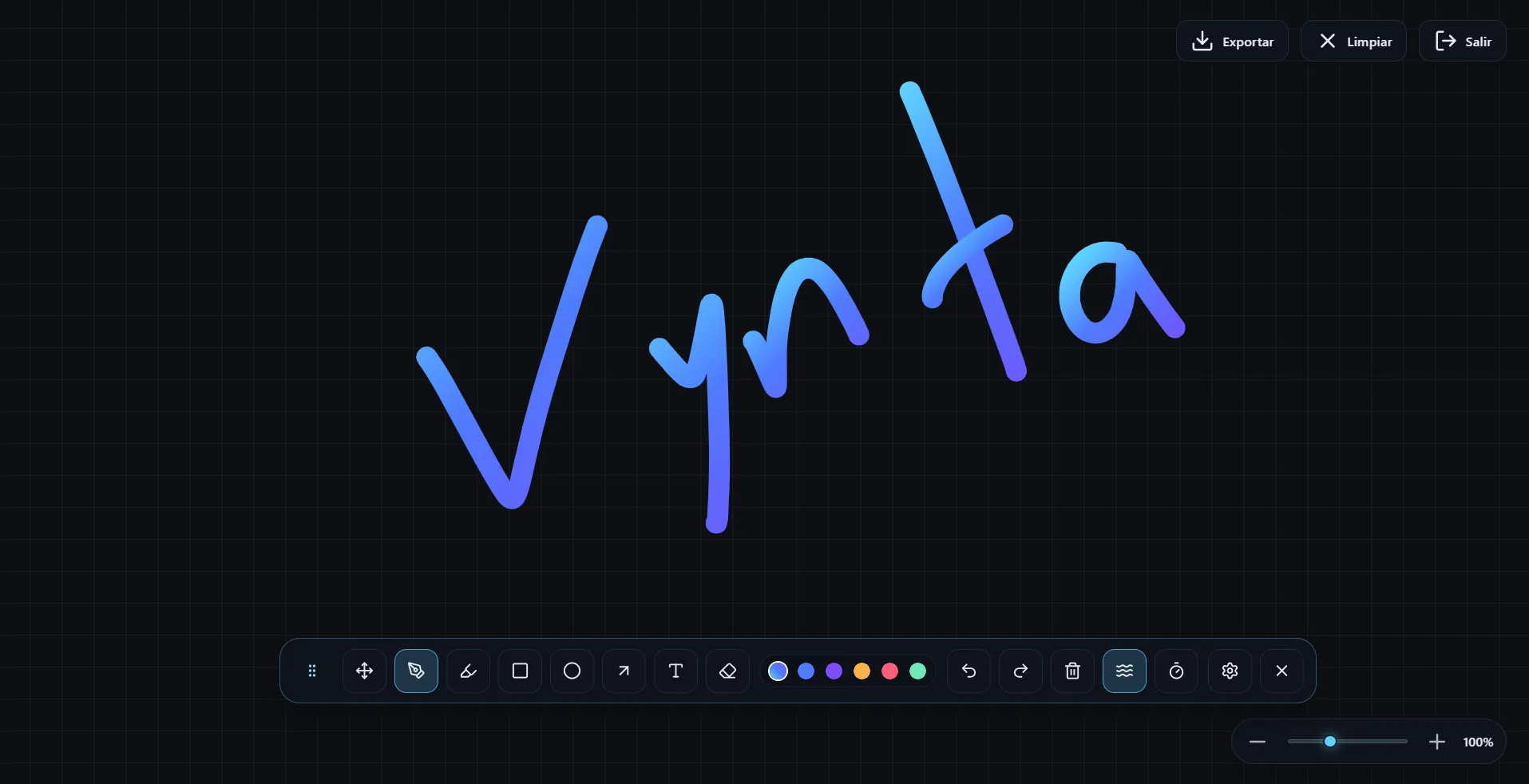
Whiteboard opens an independent, clean canvas for freeform drawing — separate from the overlay that draws on top of apps.
Default shortcut: Ctrl + 4
How It Works
Unlike Live Draw (which draws on a transparent layer over your screen), Whiteboard opens a dedicated opaque window with a solid background. It uses the same drawing engine but provides a blank canvas for sketching ideas.
Features
Full Drawing Tools
The whiteboard includes the same complete drawing toolset as Live Draw:
- Pen, marker, shapes (rectangle, ellipse, line, arrow)
- Text placement and editing
- Eraser and select tool
- All color, gradient, and stroke width options
- Undo / Redo
Grid
Toggle an optional grid overlay on the whiteboard background.
Infinite Canvas
The whiteboard supports infinite canvas — scroll and pan to access unlimited drawing space beyond the visible window area.
- To pan, use the mouse wheel or trackpad (with 2 fingers).
- To zoom, hold down the
Ctrlkey and use the mouse wheel or trackpad (with 2 fingers).
Export
Save your whiteboard content as a PNG image file. This captures the current visible canvas with all drawings included. Saved files are stored in your downloads folder.
Toolbar
The whiteboard has its own floating toolbar, independent of the overlay toolbar. Its position is saved separately and persists between sessions.
More Options (Floating)
Whiteboard includes a floating More options panel above the dock with shared editing actions:
- Line style: solid, dashed, dotted
- Lock / Unlock selection (applies to whole selected groups)
- Group / Ungroup selection (groups behave as single units and can be merged)
- Smoothing toggle
- Auto-erase toggle
- Text style (when Text tool is active): bold, italic, underline, align left/center/right
- Corner radius (when Rectangle tool is active): cycle radius presets
- Arrow style (when Arrow tool is active): simple, filled, double, thick, stealth
Selection & Editing Actions
Whiteboard supports the same selection workflow as Live Draw:
- Multi-selection with
Ctrl / Cmd / Shift + click - Copy (
Ctrl + C), Paste (Ctrl + V), Duplicate (Ctrl + D) - Lock / Unlock (
Ctrl + L) for the selected unit (item or full group) - Group (
Ctrl + G) and Ungroup (Ctrl + Shift + G) - Clicking a grouped item selects the full group
- Grouping selected items from different groups merges them into one group
Use Cases
- Brainstorming: Sketch ideas during meetings without switching to another app
- Teaching: Draw anything on a clean surface
- Quick notes: Jot down visual notes during presentations
- Explaining concepts: Use as a scratchpad during screen shares