
Cursor Highlight
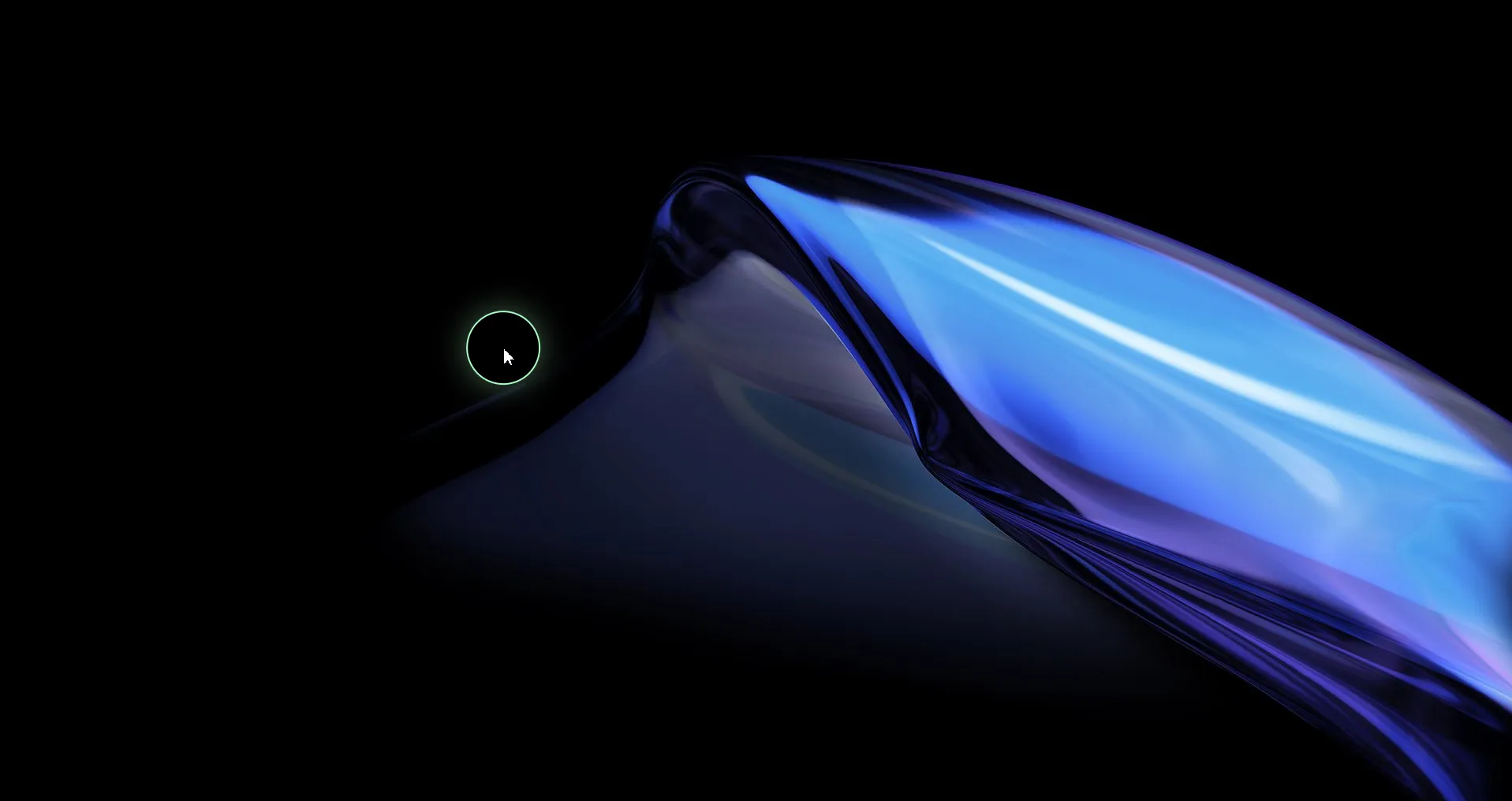
Cursor Highlight adds a visible halo around your mouse cursor, making it easy for your audience to track where you're pointing during presentations, demos, and screen recordings.
Default shortcut: Ctrl + 2
How It Works
When activated, a colored overlay follows your cursor across the screen. This is rendered as a separate transparent window that tracks the cursor position in real time using Rust-level cursor polling.
Configuration
| Setting | Options | Description |
|---|---|---|
| Color | Any color (color picker) | The halo's fill color |
| Size | Adjustable slider | Radius/diameter of the highlight area |
| Shape | Circle, Square, Diamond | Shape of the halo |
All settings are accessible from the Cursor Highlight section in the main settings panel.
Shapes
- Circle — A smooth round halo (default)
- Square — A rectangular highlight area
- Diamond — A rotated square for a distinctive look
Use Cases
- Presentations: Help your audience follow along during slide walkthroughs
- Tutorials: Make it clear where you're clicking in software demos
- Screen sharing: Ensure cursor visibility on compressed video streams
- Accessibility: Increase cursor visibility for viewers with visual impairments
Tips
- Use a high-contrast color (like yellow or cyan) against dark backgrounds for maximum visibility
- The highlight is visible when sharing your entire screen in video calls and screen recordings