Live Draw
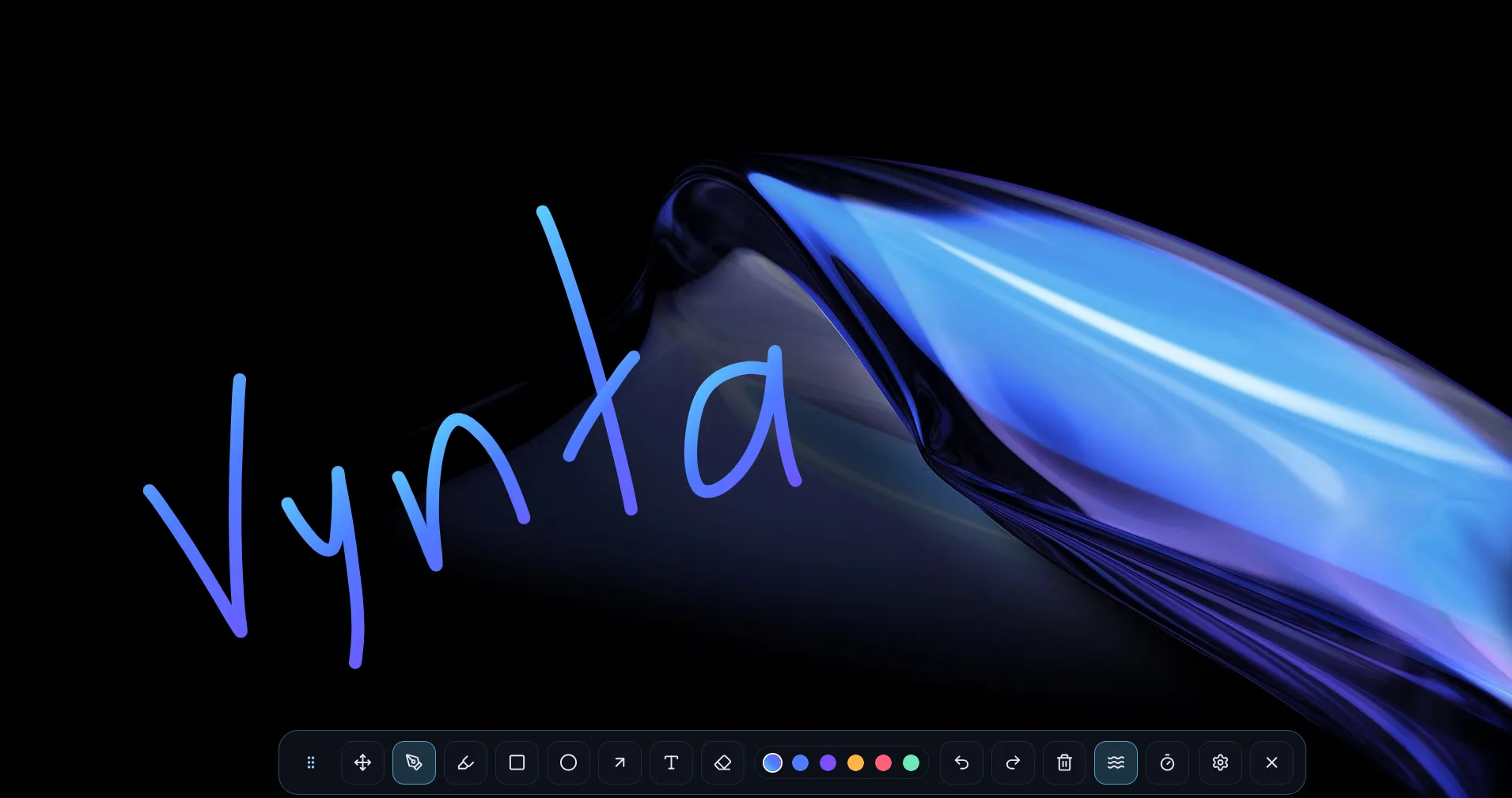
Live Draw is Vynta's core annotation mode. It creates a transparent fullscreen overlay where you can draw directly on top of any application, presentation, or desktop content.
Default shortcut: Ctrl + 1
Drawing Tools
| Tool | Description |
|---|---|
| Pen | Freehand drawing with configurable smoothing |
| Marker | Semi-transparent freehand strokes (35% opacity) |
| Rectangle | Draw rectangles with adjustable fill opacity |
| Ellipse | Draw circles/ellipses with adjustable fill opacity |
| Line | Straight lines between two points |
| Arrow | Lines with arrowheads |
| Text | Click to place editable text with font and size options |
| Eraser | Stroke-based eraser — removes entire strokes on contact |
| Select | Click on a stroke to select and manipulate it |
Customization Options
Color & Stroke
- Stroke color: Full color picker for any color
- Stroke width: Adjustable slider for thickness
- Quick color slots: Save your favorite colors for fast access
- Default color: Save your active color to be used as default
Gradient Strokes
Enable gradient mode to draw with color transitions:
- Linear gradient: Colors transition along an angle
- Custom stops: Add multiple color stops to control the gradient
Fill Opacity
Shapes (rectangle, ellipse) support adjustable fill opacity — from fully transparent outlines to solid filled shapes.
Text Options
- Font family: Choose from multiple fonts (Inter, Arial, Courier New, etc.)
- Font size: Adjustable text size
- Click on existing text to edit it; click elsewhere to create new text
Special Features
Smoothing
When enabled, freehand strokes (pen, marker) are smoothed automatically to reduce jitter and produce cleaner lines.
Auto-Erase
Annotations can fade out automatically after a configurable delay:
- Enable/disable per session
- Delay: Set how many seconds before strokes start fading
- Strokes fade with a smooth opacity transition before being removed
This is particularly useful during presentations where you want temporary annotations.
Undo / Redo
Full undo/redo history for all drawing actions, including text creation, stroke removal, and erasing.
Multi-Monitor Support
Live Draw detects all connected monitors and its overlay window will be displayed only on the active monitor (where the cursor is).
Floating Toolbar
The overlay toolbar provides quick access to all tools and settings:
- Draggable: Move it anywhere on screen
- Orientation: Horizontal or vertical layout
- Position persistence: Remembers its position between sessions
- More options (floating panel): Advanced actions are available in a floating panel above the dock.
More Options Actions
- Line style: Cycle between solid, dashed, and dotted strokes.
- Lock / Unlock selection: Locking a selected group locks all its members.
- Group / Ungroup selection: Grouped items are treated as one unit; regrouping can merge existing groups with new items.
- Smoothing: Toggle stroke smoothing.
- Auto-erase: Toggle automatic fade/removal.
- Text style (when Text tool is active): Bold, italic, underline, and text alignment (left/center/right).
- Rectangle corners (when Rectangle tool is active): Cycle corner radius presets.
- Arrow style (when Arrow tool is active): Cycle between simple, filled, double, thick, and stealth styles.
Selection & Editing
The Select tool supports editing actions shared with Whiteboard:
- Multi-selection with
Ctrl / Cmd / Shift + click - Copy (
Ctrl + C) / Paste (Ctrl + V) / Duplicate (Ctrl + D) selected items - Lock / Unlock (
Ctrl + L) selected items or selected groups - Group (
Ctrl + G) / Ungroup (Ctrl + Shift + G) selected items - Clicking one member of a group selects the entire group
- Grouping selected items that already belong to different groups merges them
Compatibility
The transparent overlay window is visible when:
- Sharing your entire screen in video calls (Teams, Zoom, Meet)
- Recording with OBS or other screen capture software
- Presenting with any application in the foreground